How to Export Your IBKR Flex Query XML for Tax Calculation
The ACB calculator reads the Flex Query XML file that Interactive Brokers produces. You set up the Flex Query once, which takes about 10 minutes. After that you run it to download your files and upload them to ActiveACB. The adjusted cost base guide explains the rules the calculator applies.
Controls to click or set are outlined in red. Click any screenshot to see it full size.
Set Up Your Flex Query
-
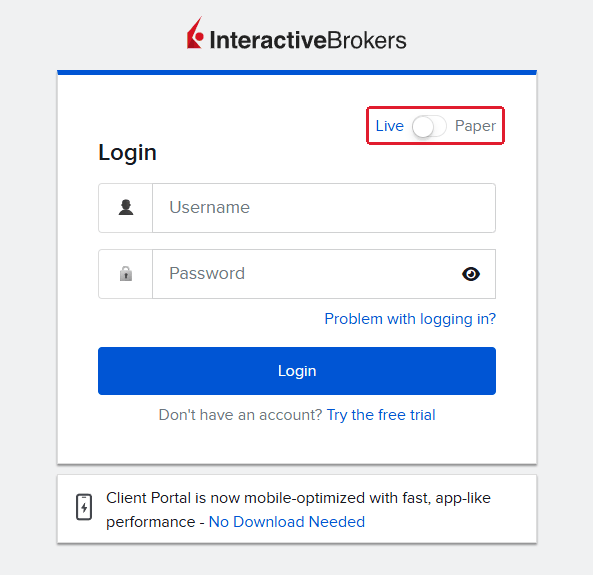
Log in to Client Portal at interactivebrokers.com. Important: the switch outlined in red must be on Live, not Paper.
-
Hover over Performance & Reports in the top menu.
-
Click Flex Queries, the third item in the dropdown and outlined in red.

-
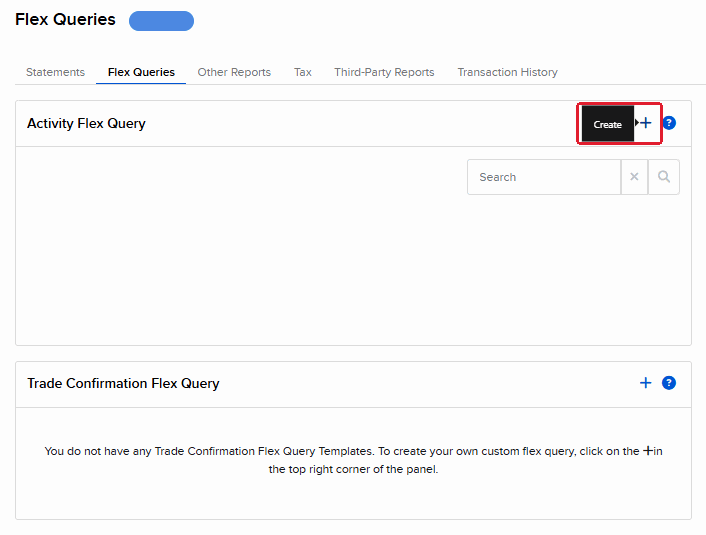
Click the + button outlined in red in the Activity Flex Query panel.
-
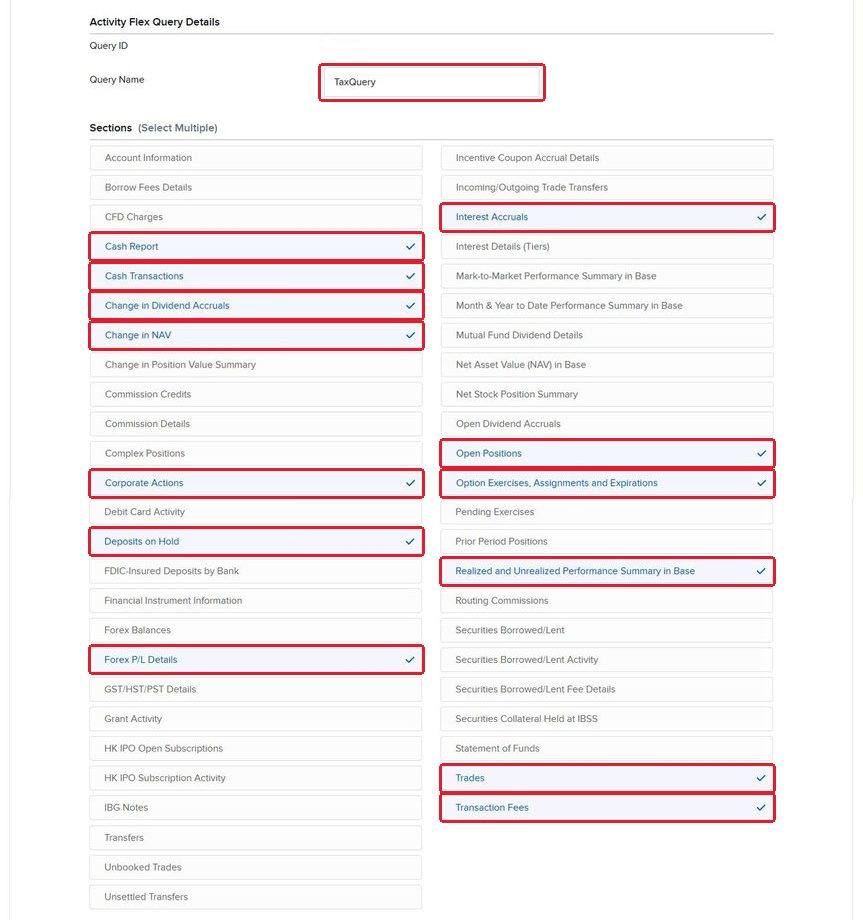
Type a name such as TaxQuery in Query Name.
-
Open the first of these 13 Sections, outlined in red. Each opens a list of fields.
- Cash Report
- Cash Transactions
- Change in Dividend Accruals
- Change in NAV
- Corporate Actions
- Deposits on Hold
- Forex P/L Details
- Interest Accruals
- Open Positions
- Option Exercises, Assignments and Expirations
- Realized and Unrealized Performance Summary in Base
- Trades
- Transaction Fees
-
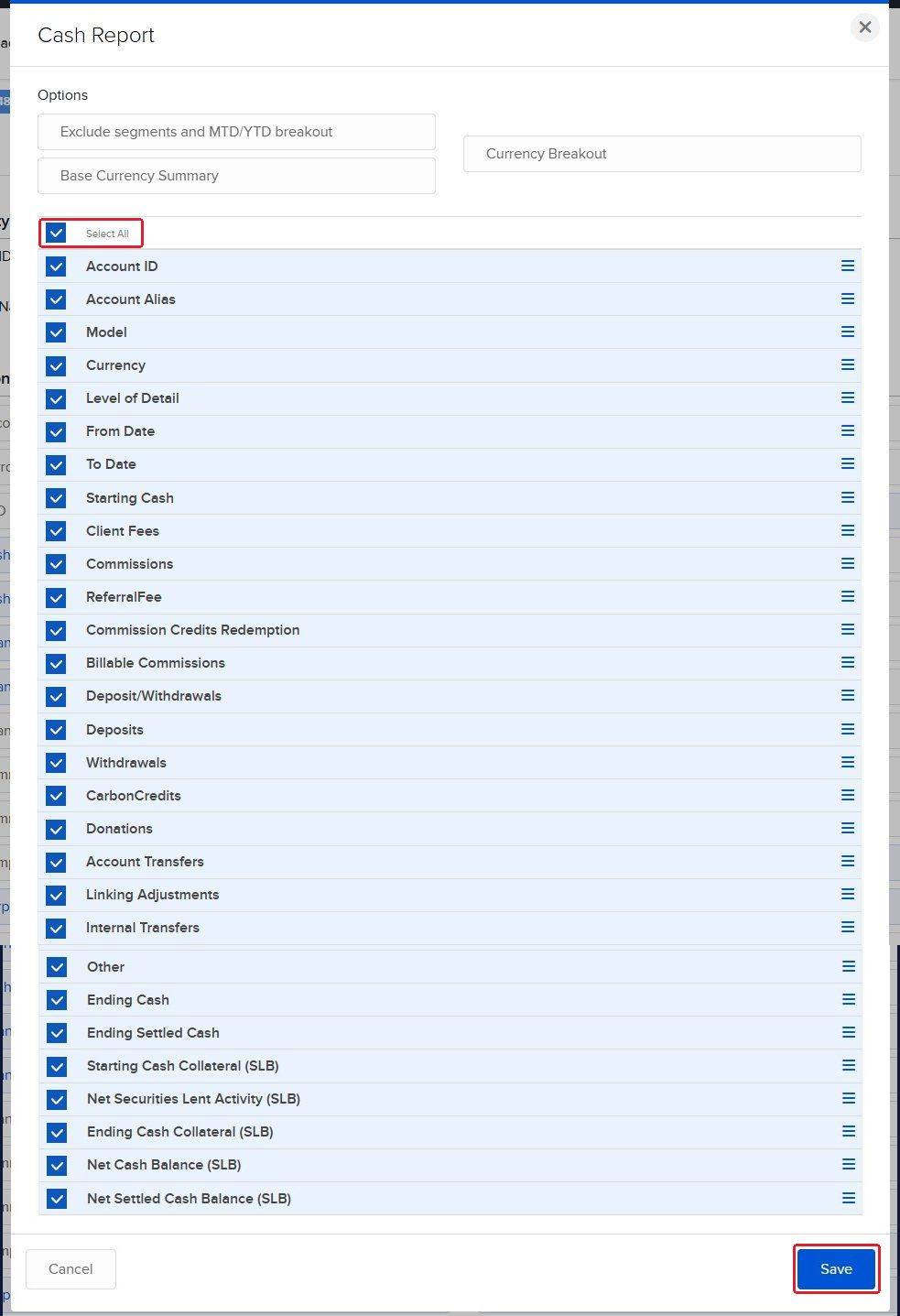
Tick Select All, outlined in red at the top of the field list.
-
Click Save at the bottom of the field list. Repeat steps 6 to 8 for the remaining sections. Each completed section shows a check mark.
-
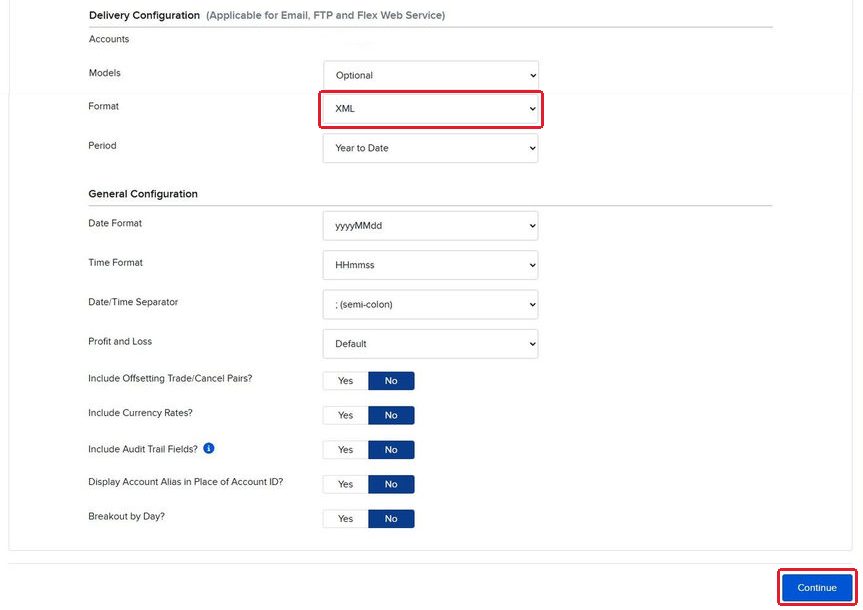
Check the settings below the sections against this table. Important: Format, outlined in red, must be XML.
- Models
- Optional
- Format
- XML
- Period
- Year to Date
- Date Format
- yyyyMMdd
- Time Format
- HHmmss
- Date/Time Separator
- ; (semi-colon)
- Profit and Loss
- Default
- Include Offsetting Trade/Cancel Pairs
- No
- Include Currency Rates
- No
- Include Audit Trail Fields
- No
- Display Account Alias in Place of Account ID
- No
- Breakout by Day
- No
-
Click Continue at the bottom of the settings page to review your query.
-
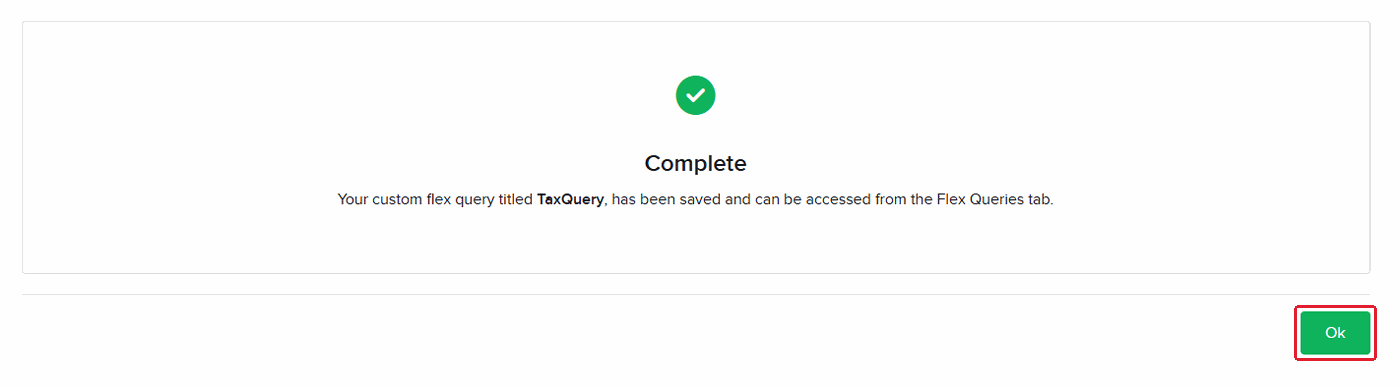
Click Create on the review page to save the query. A Complete message with a green check mark confirms it is saved.
-
Click Ok, outlined in red, to return to your saved queries.
Run the Query and Download Your Files
-
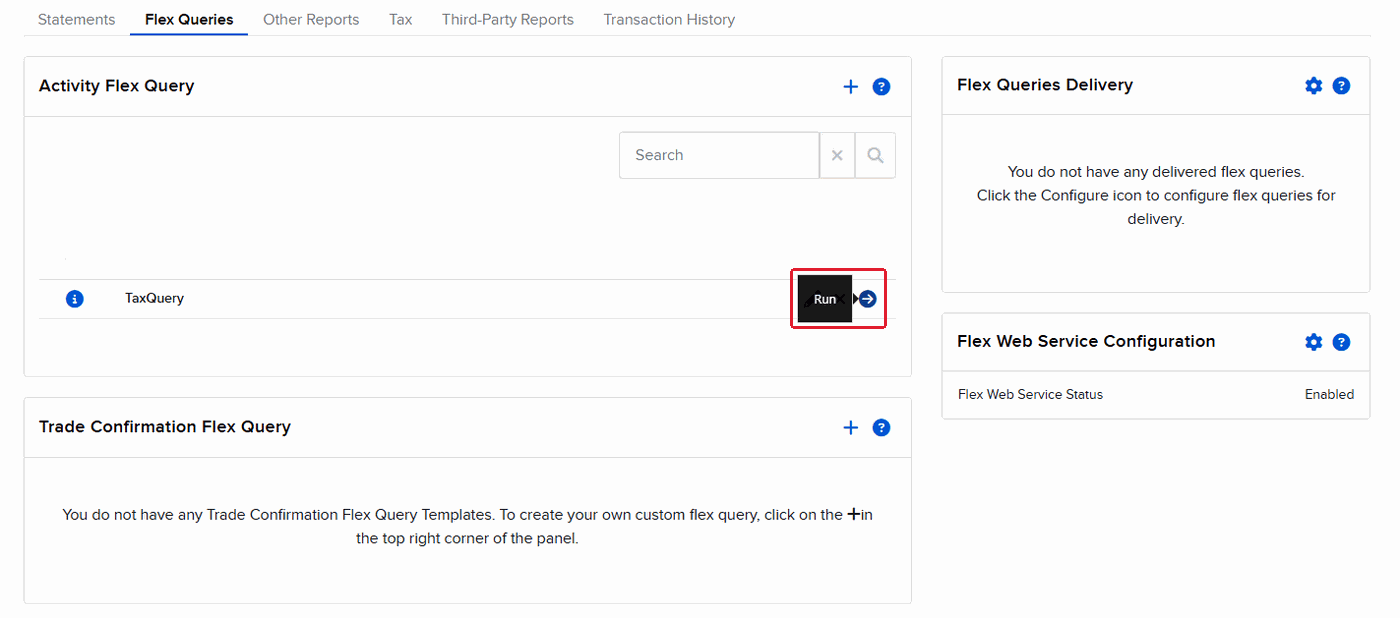
Click the Run arrow outlined in red beside your query on the Flex Queries page.
-
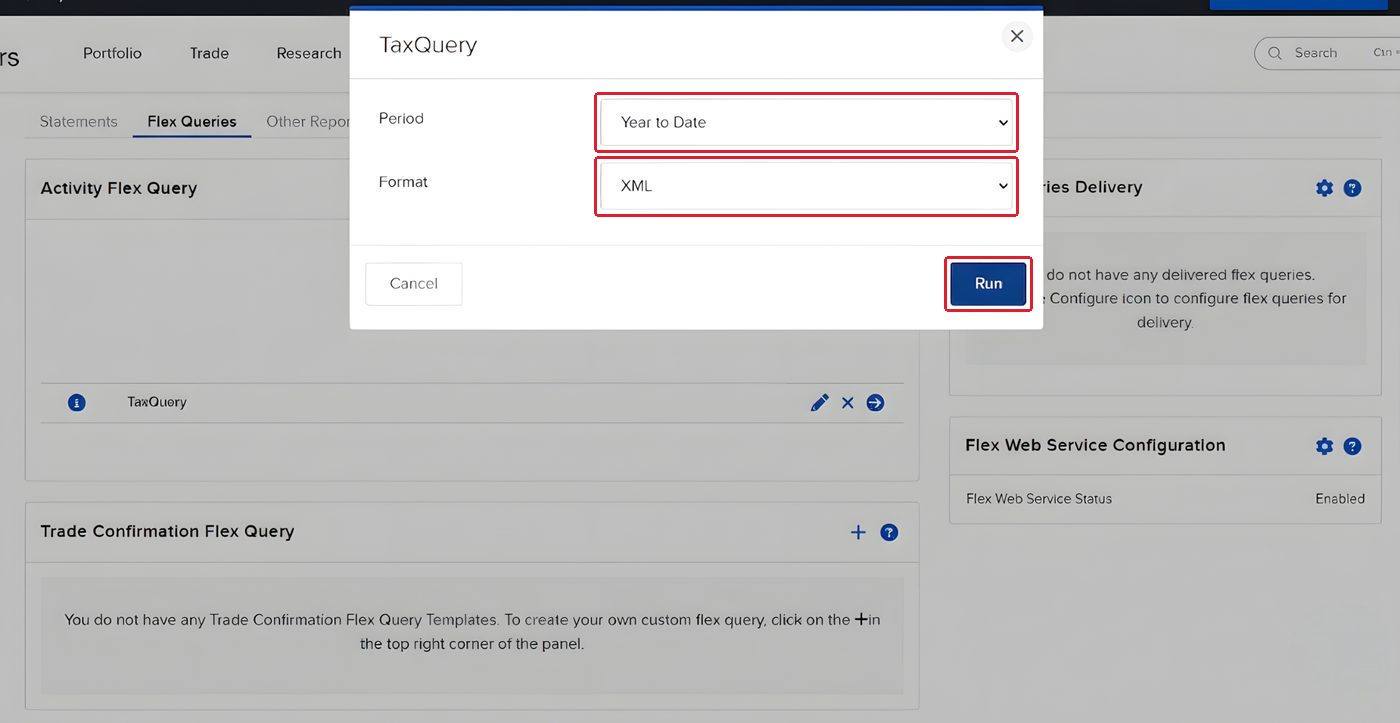
Choose a custom date range in Period. Use no more than 365 days per file. Important: start with the year you first traded so earlier purchases are included.
-
Set Format to XML, outlined in red. The screenshot shows the default Period setting before you choose your dates.
-
Click Run to download the XML file.
-
Repeat steps 1 to 4 for the remaining date ranges through your tax year. See the date-range example below for leap years and January repurchases.
Check your files. Each download should end in .xml. Together, the files should cover your history without gaps. A day or two of overlap is fine. Duplicate trades from overlapping ranges are removed automatically.
Upload to ActiveACB
Important: if your files include registered accounts, follow the account exclusion instructions below before calculating.
-
Open the calculator.
-
Add all your XML files with + Add files. Uploading more than one file in a calculation requires season access.
-
Run the calculation. Your trades, dividends, fees and other tax data are read automatically.
If a row needs a correction, the trade editor on the results page lets you fix, add or delete rows and recalculate without uploading again.
Broker Reconciliation, IBKR only: your results include a Broker Reconciliation section that compares IBKR's own realized P&L for each symbol against the engine's Schedule 3 figure, with each difference explained (FX method, superficial losses, return of capital, options, short sales). It appears on the results page, in your history, and in the PDF report.
If This Applies to You
Why start from your first trade. Your adjusted cost base depends on earlier purchases and adjustments, so one year of trades may not be enough for holdings bought earlier. The engine processes every year in order to work out your opening positions and opening foreign-cash balances, then reports only the sales in the tax year you pick.
Traded only in Canadian dollars? If you never held US-dollar cash, you can start at the earliest purchase of anything you still held at the start of the tax year. If you traded in USD, keep the full history so your foreign-currency gains under s.39(2) start from the correct balances.
Sold at a loss in December? Important: add a file covering January 1 to January 30 of the next year. This lets the engine see January repurchases that would make the loss a superficial loss under ITA s.54. If you skip this, the report flags the affected December losses with a warning.
More than one IBKR account? A Flex Query that covers several accounts works as one file. Every account statement inside it is read, and overlapping rows are counted once.
Files include registered accounts? Before calculating, enter any TFSA, RRSP, RRIF or FHSA account IDs in Additional registered account IDs to exclude. Your account ID is in the top-right corner of Client Portal, for example U1234567. Registered account trades and income are not taxable and stay out of your report.
More than 365 days of history?
Split the download into ranges of no more than 365 days each. For a 2025 return with trading that began in 2021, use the following files. The leap year is split into two files, and the optional January file is separate.
- File 1: Jan 1, 2021 to Dec 31, 2021
- File 2: Jan 1, 2022 to Dec 31, 2022
- File 3: Jan 1, 2023 to Dec 31, 2023
- File 4: Jan 1, 2024 to Jun 30, 2024
- File 5: Jul 1, 2024 to Dec 31, 2024
- File 6: Jan 1, 2025 to Dec 31, 2025
- File 7 (optional): Jan 1, 2026 to Jan 30, 2026
Prefer ActiveACB in your Google results. Add activeacb.ca as a preferred source and Google shows you more of our tax guides in your own search results.
Add ActiveACB in Google