How to Export Your Questrade Transaction History for Tax Calculation
The ACB calculator reads the Excel file that Questrade exports from its Transaction history page. Exporting takes about five minutes, and you upload the file to ActiveACB as it is. The adjusted cost base guide explains the rules the calculator applies.
Controls to click or set are outlined in red. Click any screenshot to see it full size.
Download Your Questrade File
-
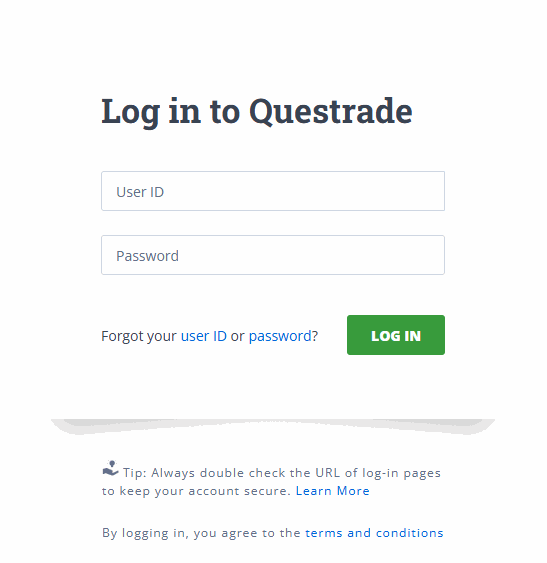
Log in at my.questrade.com with your User ID and password.
-
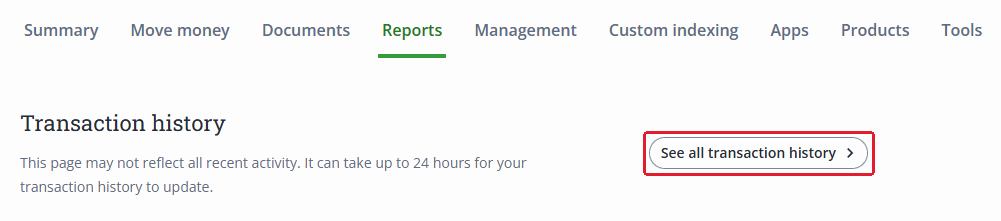
Click Reports in the top menu.

-
Click See all transaction history.
-
Set the Date range. Start on the day you opened your account, or the earliest date offered. End on December 31 of your tax year, or today for a year-to-date check. Important: an early start date lets the calculator see every purchase behind what you sold. For December losses or options, check the date-range notes below.

-
Under Activity types, keep every type selected. Click Select all if any are off.

-
Click Export to Excel. The Excel file downloads to your computer.

Check your file. The download is an Excel workbook ending in .xlsx. One file can cover all your Questrade accounts. If your history is too large for one file, see splitting your history below.
Upload to ActiveACB
-
Open the calculator.
-
Add your Excel file. Use + Add files for more than one. Uploading more than one file in a calculation requires season access.
-
Run the calculation. Your trades, dividends, fees and other tax data are read automatically.
-
If you hold Canadian ETFs, confirm the verified return of capital and reinvested distribution figures in the review step.
If a row needs a correction, the trade editor on the results page lets you fix any row and recalculate without uploading again.
Reinvested dividends: DRIP rows are recorded as share purchases, so reinvested distributions enter your cost base instead of being counted as extra income.
If This Applies to You
Why start from your first trade. Your adjusted cost base depends on earlier purchases, so one year of trades may not be enough for holdings bought earlier. The engine processes every year in order to work out your pooled cost base, then reports only the sales in the tax year you pick.
Traded only in Canadian dollars? If you never held foreign-currency cash, at minimum include all activity from the earliest purchase of any security you still held at the start of the tax year. If you held USD or other foreign cash, keep the full history so the calculator can work out its opening balance and Canadian-dollar cost base.
Sold at a loss in December? Important: end the date range on January 30 of the next year instead of December 31. This includes any January repurchase inside the 30-day look-forward window for a superficial loss. Without January data, the calculator cannot fully check December losses. Review the look-forward warnings before filing.
Trade options? Keep every activity type selected. Questrade lists expiries, assignments and exercises as separate rows under Other, and the calculator needs them to close each contract. Questrade does not mark an option trade as opening or closing, so export from before your oldest open option position through today. That lets the calculator tell a buy-back of an option you wrote from a new purchase.
History too large for one file? Split it into several date ranges with no gaps between them, export each one, and upload all the files together with + Add files.
Have a TFSA, RRSP or other registered account? One export can cover all your Questrade accounts. Rows from registered accounts (TFSA, RRSP, RRIF, FHSA, RESP and RDSP) are excluded automatically by account type. If one is not filtered, enter its account number in Additional registered account IDs to exclude on the upload page. Use the number in the export’s Account # column, for example 12345678.
Filing from your T5008? See why your Questrade T5008 may not reflect your true ACB.
Prefer ActiveACB in your Google results. Add activeacb.ca as a preferred source and Google shows you more of our tax guides in your own search results.
Add ActiveACB in Google