How to Export Your Scotia iTRADE Transactions for Tax Calculation
The ACB calculator reads the CSV that Scotia iTRADE exports from an account’s Transactions tab. Each account exports on its own, and the column mapper fills in Scotia’s columns for you to check. The adjusted cost base guide explains the rules the calculator applies.
Controls to click or set are outlined in red. Click any screenshot to see it full size.
Download Your Scotia iTRADE CSV
-
Log in at scotiaitrade.com.
-
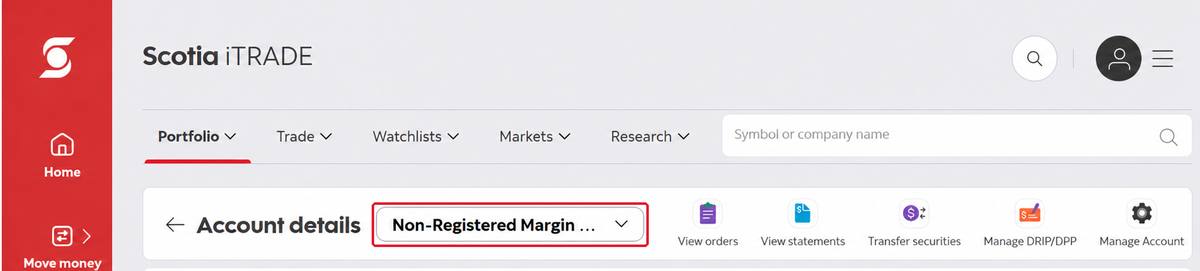
Open Account details for one of your non-registered accounts. The account menu at the top shows which account you are in. Important: export only non-registered accounts. The file has no account type column, so a TFSA or RRSP export would be counted as taxable.
-
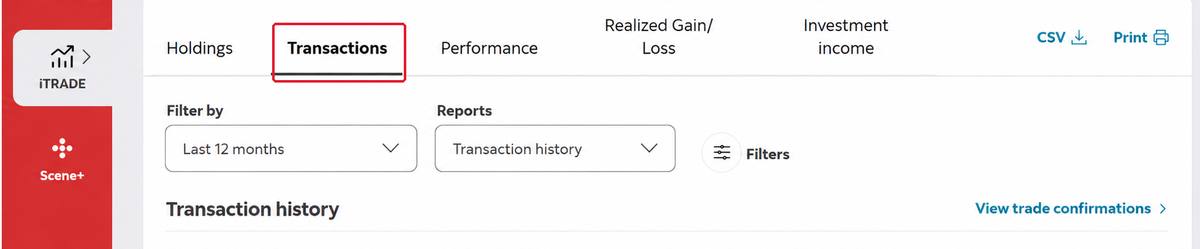
Click Transactions.
-
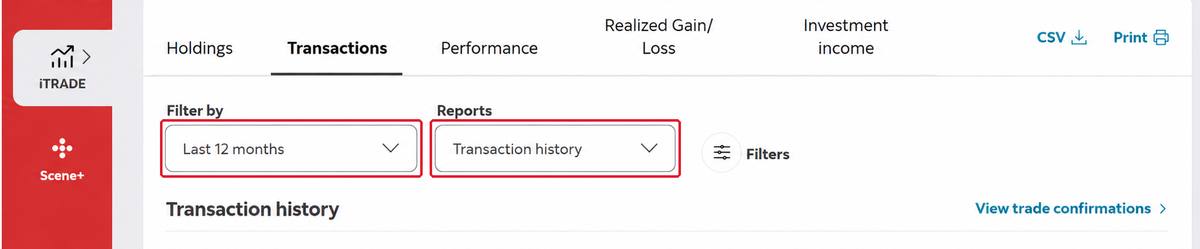
In Filter by, choose a period that reaches back to your first purchase, and leave Reports on Transaction history. Scotia iTRADE keeps transaction history back to January 1, 2018.
-
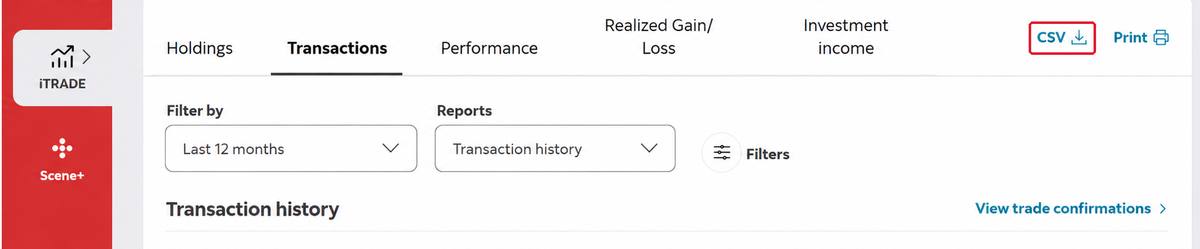
Click CSV.
-
Repeat steps 2 to 5 for each of your other non-registered accounts.
Check your files. Each download is a CSV file ending in .csv, one for each account.
Upload to ActiveACB
-
Open the calculator.
-
Add your Scotia iTRADE CSV files. Use + Add files for more than one. Uploading more than one file in a calculation requires season access.
-
Check the columns. The column mapper opens with Scotia iTRADE’s columns filled in. Confirm them, or correct any that look wrong.
-
Run the calculation.
Scotia iTRADE’s settlement amount already includes the commission, so the calculator takes it as the full cost of a purchase and the full proceeds of a sale. Fees stay included in that total and are not shown separately unless you map a commission column in the settlement currency.
Early support, and your file helps. Scotia iTRADE support is preliminary and was built from the layout of the export, not from a full sample file. To keep improving it, each Scotia iTRADE file you upload is kept privately for 7 days and then deleted, as the privacy policy describes. You can turn this off on your profile page. Activity words the mapper does not know, such as currency exchange rows, are never guessed at. The mapper lists them, and any row it skips is named in your warnings with its row number.
If This Applies to You
Why start from your first trade. Your adjusted cost base depends on earlier purchases, so one year of trades may not be enough for holdings bought earlier. The engine processes every year in order to work out your pooled cost base, then reports only the sales in the tax year you pick.
Bought before 2018? The transaction history starts on January 1, 2018. Add earlier purchases from your statements or trade confirmations with the starter template, and upload it with your Scotia files. A sale of more units than your files hold is named in your warnings.
Sold at a loss in December? Important: choose a period that runs to January 30 of the following year, so January repurchases are included in the superficial loss check.
Did a Norbert’s gambit? Journaling DLR to DLR.U shows as two Transfer rows. Your warnings list them as transfers that were not applied, and the calculator never takes a cost from the book value Scotia prints in their description. If your trades use both DLR and DLR.U, confirm that they are the same fund and use one consistent ticker before uploading. See Norbert’s gambit and ACB.
Traded in US dollars? Currency exchange rows are not read yet, so a gain or loss on your US-dollar cash can be left out of your results. Review the skipped rows and your US-dollar cash history separately.
Holding accounts at more than one broker? With season access you can upload your Scotia iTRADE files alongside a Questrade XLSX, a Wealthsimple CSV or an IBKR Flex Query XML in the same session. Check that identical holdings use the same ticker in each file. The engine pools your ACB across all of them and detects superficial losses that span brokers.
Filing from your T5008? See why your Scotia iTRADE T5008 may not reflect your true ACB.
Prefer ActiveACB in your Google results. Add activeacb.ca as a preferred source and Google shows you more of our tax guides in your own search results.
Add ActiveACB in Google